ExpertOption Verification Guide 2026: How to Complete KYC and Unlock Withdrawals

In this guide, you'll learn how to complete ExpertOption verification step by step, what documents are required, and how to ensure a smooth approval process so you can trade confidently and withdraw your funds without delays.

Verify Your ExpertOption Account Overview — Complete KYC Guide for Traders
Verifying your ExpertOption account is one of the most important steps you can take as a trader. It unlocks full access to withdrawals, higher transaction limits, and ensures your funds are always protected. This guide walks you through everything you need to know about the verification process from start to finish.
Why Does ExpertOption Require Verification?
Account verification — also known as KYC (Know Your Customer) — is a standard security and compliance requirement used by regulated financial platforms worldwide. It is not unique to ExpertOption. Every legitimate trading platform that handles real money transactions is required to verify the identity of its users.
For traders, verification serves several important purposes:
- Protects your account from unauthorized access and fraudulent activity
- Unlocks full withdrawal access so you can cash out your profits without restrictions
- Increases transaction limits for both deposits and withdrawals
- Confirms your ownership of the payment methods linked to your account
- Complies with international financial regulations that protect both the platform and its users
Skipping verification might seem convenient in the short term, but it will create delays and complications the moment you want to withdraw your earnings. Completing it early is always the smarter choice.
Who Needs to Verify Their ExpertOption Account?
Verification is required for:
- Traders making their first withdrawal from the platform
- Users withdrawing above a certain threshold amount
- Accounts flagged for additional security review
- Traders who want access to higher deposit and withdrawal limits
Even if verification is not immediately required, completing it proactively saves you time and frustration later when you are ready to access your funds.
What Documents Do You Need?
ExpertOption’s verification process follows standard KYC procedures and requires two categories of documents:
1. Proof of Identity
A government-issued document that confirms who you are. Accepted documents typically include:
- Passport — the most universally accepted form of ID
- National Identity Card — front and back copy required
- Driver’s License — front and back copy required
Your document must be:
- Valid and not expired
- Clearly readable with no blurred or cropped edges
- Showing your full name, date of birth, and photo
2. Proof of Address
A document that confirms your current residential address. Accepted documents typically include:
- Utility bill — electricity, water, gas, or internet
- Bank statement — showing your name and address
- Government-issued letter — tax document or official correspondence
Your proof of address must be:
- Dated within the last three months
- Showing your full name and current address
- Issued by a recognized institution
3. Proof of Payment Method (if applicable)
If you deposited using a bank card, you may be asked to verify ownership of that card by providing:
- A photo of the front of the card showing the first six and last four digits (middle digits can be covered for security)
- A photo of the back of the card with the CVV covered
Key Facts About ExpertOption Verification
| Detail | Information |
|---|---|
| Verification Required | For withdrawals and higher limits |
| Process Name | KYC (Know Your Customer) |
| Documents Required | ID + Proof of Address |
| Processing Time | 24 to 48 hours |
| Verification Fee | Free |
| Can I Trade Without Verifying | Yes — but withdrawals are restricted |
| How to Submit | Through your account profile section |
How to Verify Your ExpertOption Account — Step-by-Step Guide
Step 1: Log In to Your ExpertOption Account
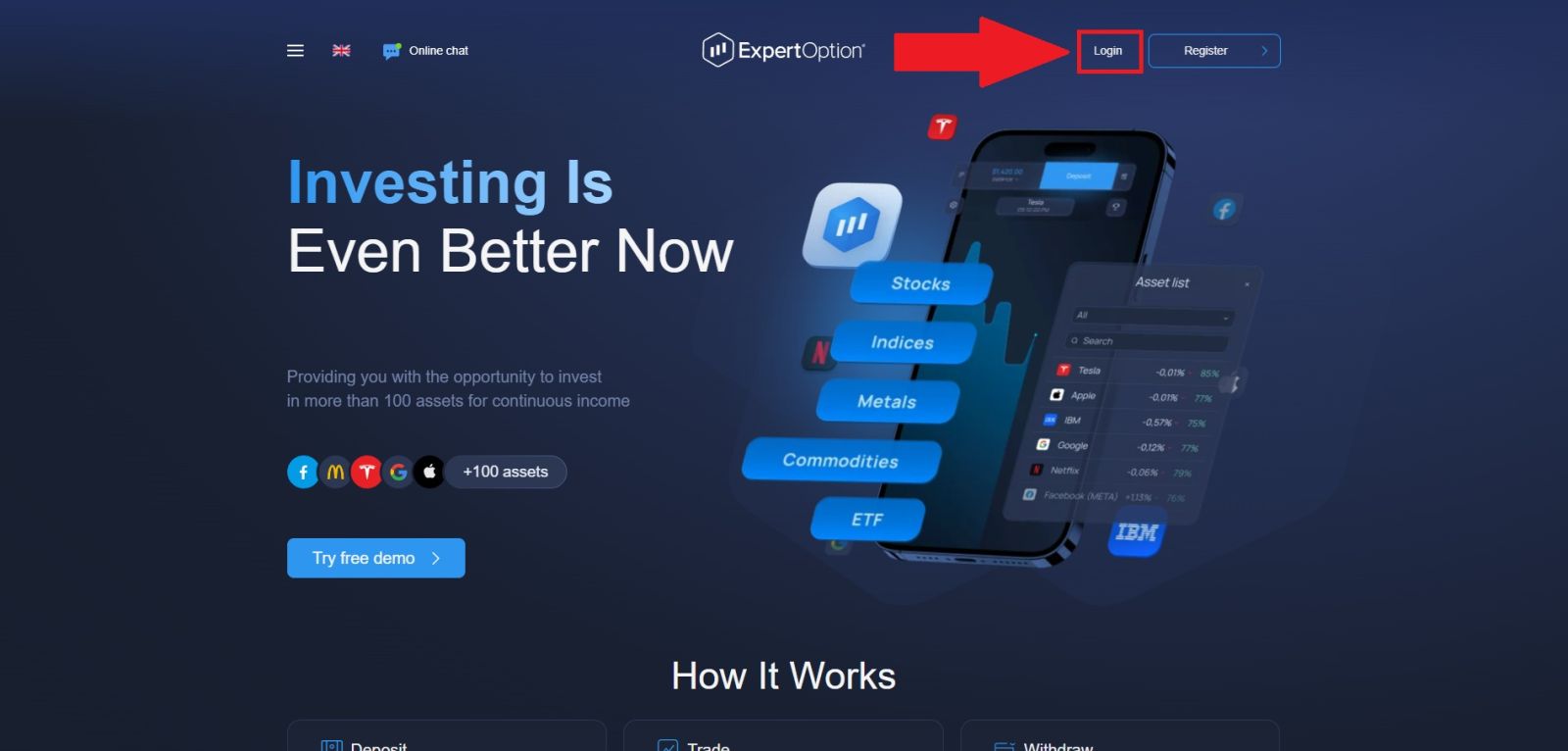
Open your browser and navigate to the official ExpertOption website. Confirm the URL is correct and the connection is secure before entering your credentials. Click "Login" and enter your registered email address and password. Once authenticated, you will be taken to your main trading dashboard.
Step 2: Navigate to the Verification Section
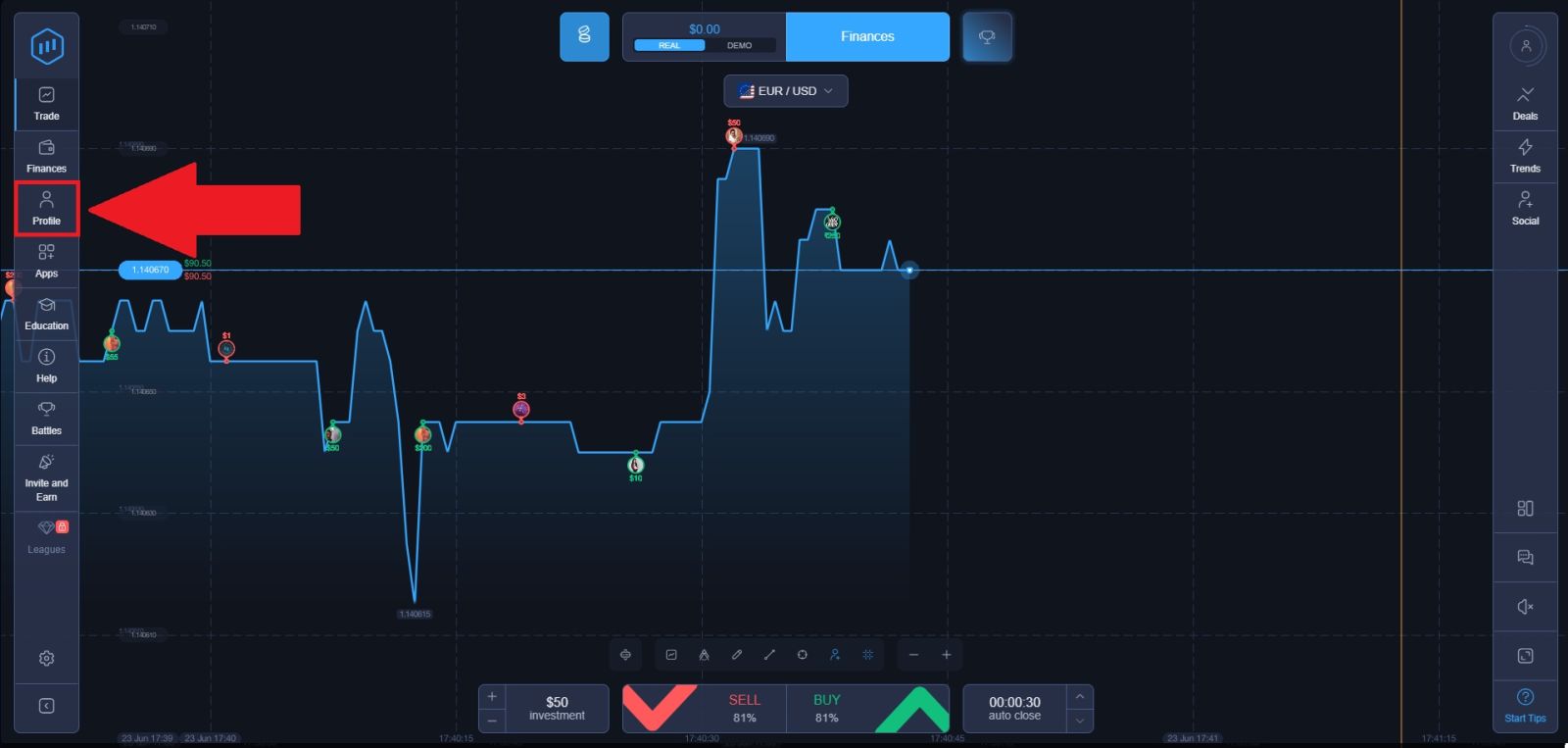
Once you are inside your dashboard, locate the "Profile" button on the left side of the screen and click it.
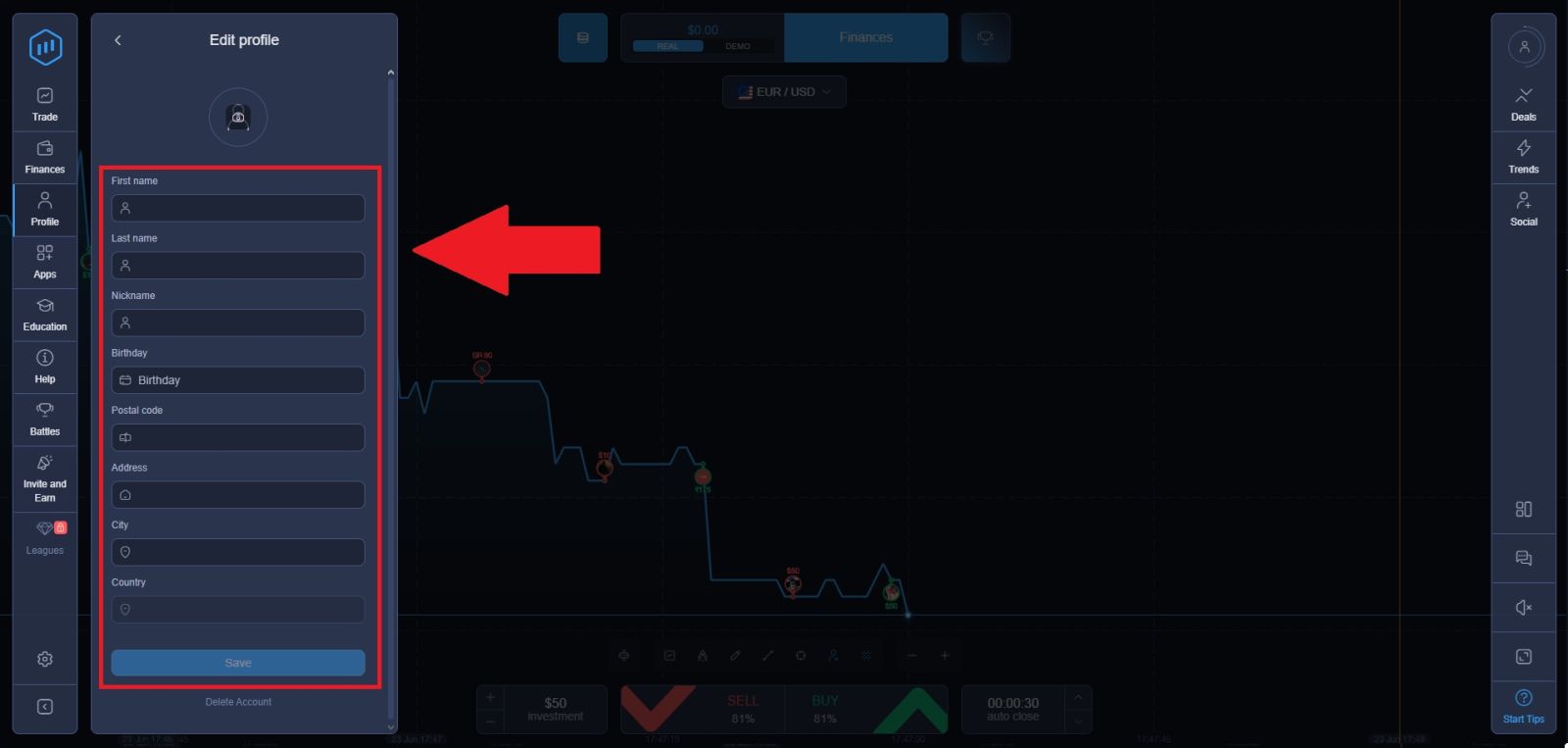
Step 3: Enter the Personal Details
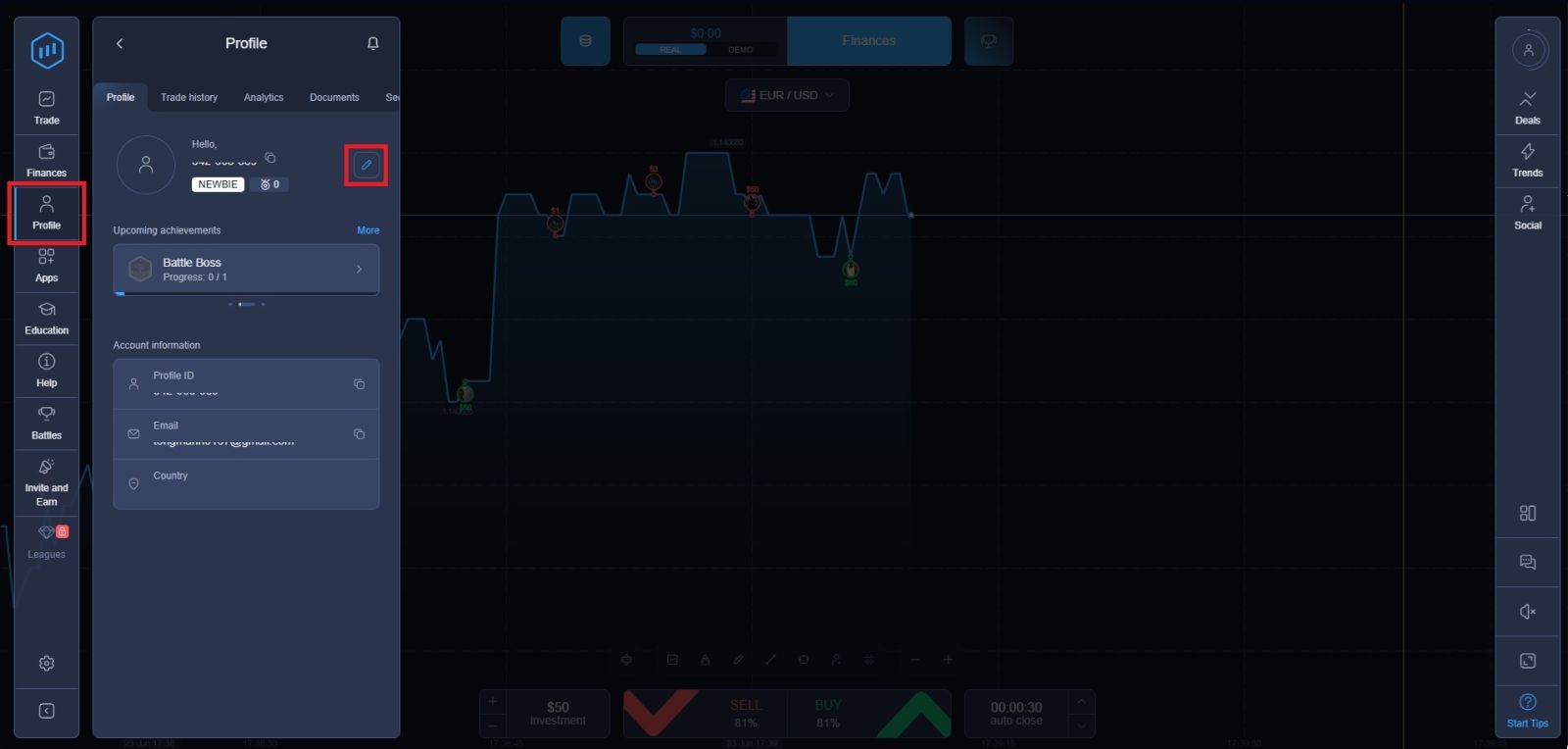
To complete your account setup, navigate to the Profile page and click the pencil icon to edit your personal information. Fill in all required fields accurately, including:
- First and last name — must match exactly as it appears on your official ID documents
- Date of birth — ensure the format is correct before saving
- Postal code and full address — use your current residential address
- City and country of residence — select your country from the dropdown menu provided
Make sure all details are entered correctly and consistently with the documents you will be submitting for verification. Any mismatch between your profile information and your uploaded documents is one of the most common reasons for verification delays or rejection.
Step 4: Uploading KYC Documents
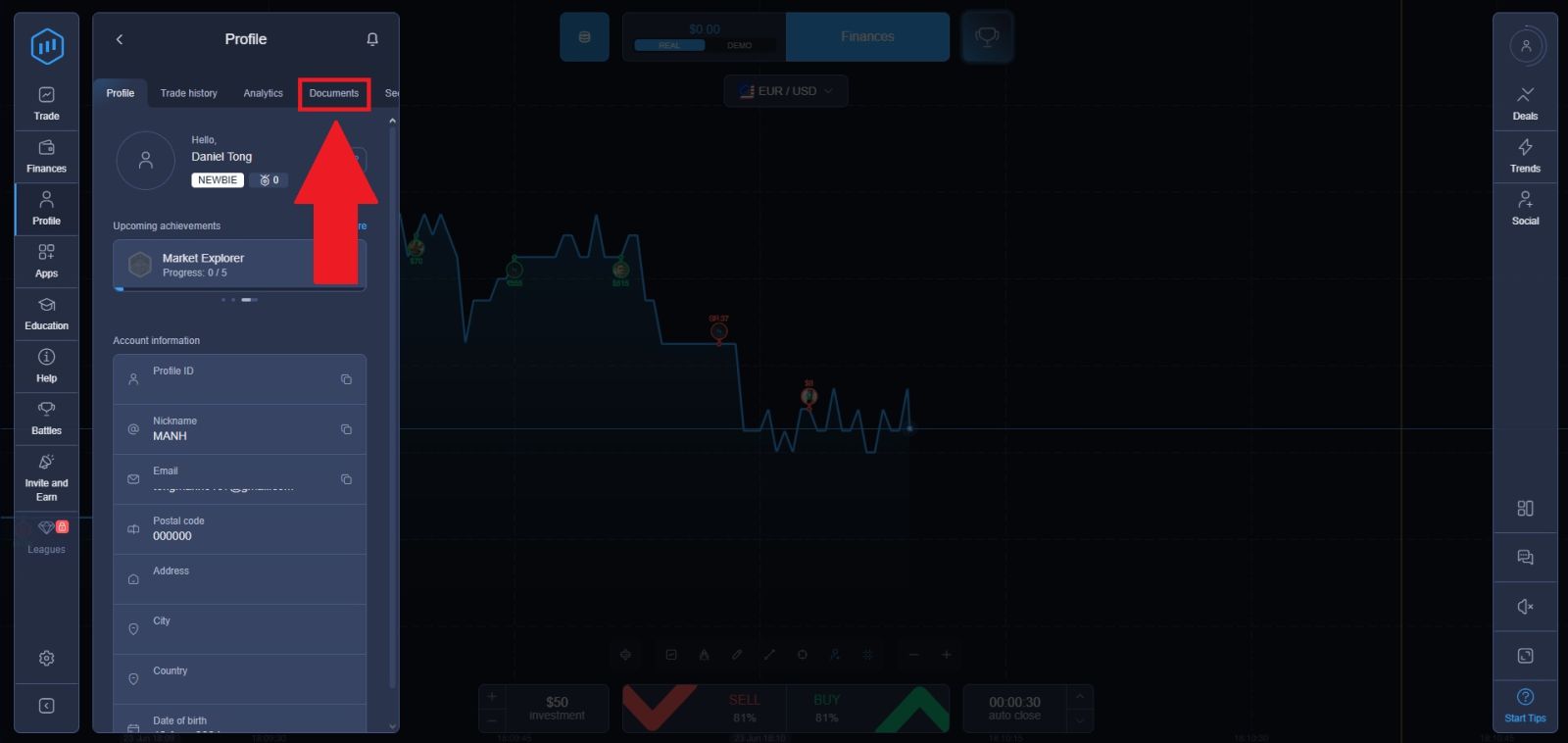
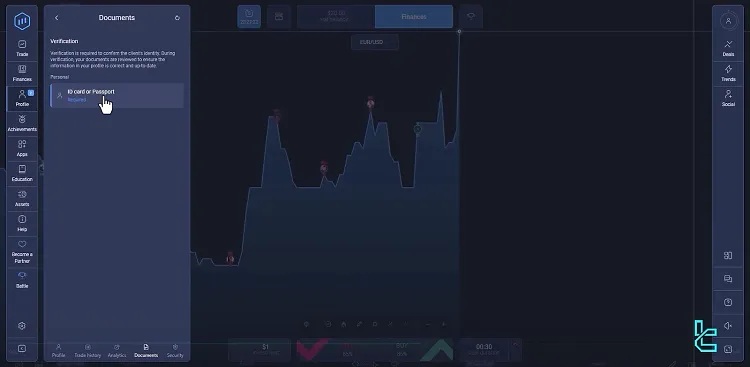
The final step in the verification process is submitting your identity documents:
- Navigate to your "Profile" page from the left side menu
- Scroll down to the "Documents" section and click on "ID Card or Passport"
- Upload a clear and legible photo or scan of your chosen document — either your national ID card or passport.
Step 5: Fill out your document detail
-
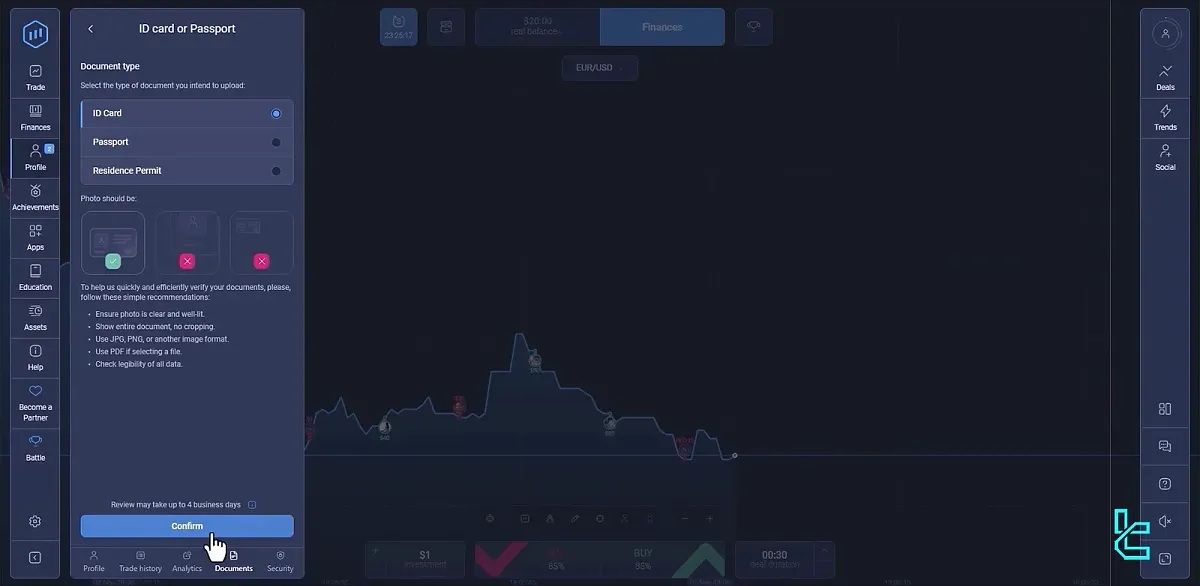
Once you have selected your document type, complete the following to finalize your submission:
- Choose your preferred document type from the available options — ID Card, Passport, or Residence Permit
- Carefully review the document requirements displayed on the screen to ensure your file meets all necessary standards before uploading
- Once you have confirmed that your document meets all the listed requirements, click the "Confirm" button to proceed with your submission
Step 6: Wait for Verification Approval
Once your documents are successfully submitted, the ExpertOption compliance team will begin reviewing your information. Here is what to expect during this period:
- Approval typically takes a few business days depending on the volume of requests being processed
- You will receive an email confirmation sent to your registered address once your account has been fully verified
- During this waiting period, you can continue trading on the platform as normal — only withdrawal requests are held until verification is complete
Keep an eye on your inbox — and your spam or junk folder — to ensure you do not miss the confirmation email. If you have not received any response after several business days, contact ExpertOption customer support through the live chat feature for an update on your submission status.
Tips for a Smooth Verification Process
Getting your verification approved quickly comes down to the quality of your submission. Keep these tips in mind:
Document quality is everything
Blurry, cropped, or poorly lit photos are the most common reason for verification delays. Take your time to capture clear, well-lit images before uploading.
Make sure your details match
The name and address on your submitted documents must match exactly what you provided when registering your ExpertOption account. Any discrepancy can cause your verification to be rejected.
Check document validity
Expired ID documents will not be accepted. Make sure your ID is currently valid and your proof of address is dated within the last three months.
Submit early
Do not wait until you are ready to make your first withdrawal to start the verification process. Submit your documents as soon as your account is created so there are no delays when you want to cash out.
Check your email
If there is an issue with your submitted documents, ExpertOption will contact you via your registered email address. Keep an eye on your inbox — and your spam folder — during the review period.
Common Verification Problems and How to Fix Them
Documents rejected due to poor image quality
Retake the photos in better lighting, making sure the entire document is visible and the text is sharp. Avoid using screenshots or photocopies where possible — original photos are preferred.
Name or address mismatch
If the details on your documents do not match your account registration information, update your profile details first or contact ExpertOption support for guidance on how to proceed.
Proof of address too old
If your utility bill or bank statement is older than three months, obtain a more recent document before resubmitting. Most banks and utility providers allow you to download recent statements directly from their online portals.
Verification taking longer than expected
If 48 hours have passed without a response, contact ExpertOption customer support through the live chat feature on the platform. Have your submission details ready to speed up the inquiry
Get Ready with ExpertOption Journey
To continue using ExpertOption effectively, the next helpful guides are:
- ExpertOption Login Guide
- ExpertOption Deposit Guide
- ExpertOption Withdrawal Guide
- ExpertOption Verification Guide
- ExpertOption Trading Guide
👉 Recommended ExpertOption flow:
Registration → Login → Verification → Deposit → Trading → Withdrawal
Conclusion: Complete Your ExpertOption Verification and Unlock Full Access
Completing the KYC verification on ExpertOption is an important step to secure your account and enable full platform functionality, including withdrawals. By submitting the required identity documents accurately and following the verification steps carefully, you can avoid delays and ensure a smooth approval process.
A verified account enhances security, protects your funds, and gives you unrestricted access to deposits, withdrawals, and trading features. Once your verification is complete, you can use ExpertOption with greater confidence and full control over your account.