How to Deposit Money to Your ExpertOption Account in 2026: Full Deposit Guide

Adding money to your ExpertOption account is a simple and secure process that allows you to start trading quickly and efficiently. The platform supports multiple payment methods, giving traders flexibility when funding their accounts.
In this full deposit guide, you'll learn how to add money to your ExpertOption account step by step, explore the available funding options, and understand important details such as fees, minimum deposits, and processing times so you can fund your account with confidence.

How to Deposit Money on ExpertOption - ExpertOption at a Glance
ExpertOption is one of the most widely used binary options trading platforms in the world, serving millions of active traders across more than 150 countries. The platform allows users to trade on the price movements of currencies, stocks, commodities, indices, and cryptocurrencies — all through a clean, fast, and beginner-friendly interface.
While the demo account lets you practice with virtual funds indefinitely, real trading requires a funded account. ExpertOption has made this process as simple and accessible as possible — with a $10 minimum deposit, zero platform fees, and support for a wide range of payment methods from bank cards to cryptocurrency.
Who This Guide Is For
Whether you are:
- A first-time trader making your debut deposit on ExpertOption
- An existing user switching to a new payment method
- A returning trader who needs a refresher on the funding process
- Someone troubleshooting a failed or missing deposit
— this guide has everything you need to deposit funds quickly, safely, and without confusion.
ExpertOption Deposit — Key Facts at a Glance
| Detail | Information |
|---|---|
| Minimum Deposit | $10 |
| Platform Deposit Fee | 0% |
| Fastest Method | Bank Card / E-Wallet (Instant) |
| Crypto Processing Time | 10 – 60 minutes |
| Supported Cards | Visa, Mastercard |
| Crypto Options | BTC, ETH, USDT, and more |
| Bonus Available | Yes — via promo codes |
| Verification Required | Usually completed after deposit and may be required before withdrawals. |
Payment Methods Available on ExpertOption
ExpertOption supports multiple deposit channels to accommodate traders from different regions and financial backgrounds. Here is a breakdown of every available method:
Visa and Mastercard
Bank cards are the most popular deposit method on ExpertOption for good reason — they are fast, widely available, and straightforward to use. Both debit and credit cards under the Visa and Mastercard networks are accepted. Deposits are processed almost instantly in the vast majority of cases, with funds appearing in your trading balance within seconds of completing the transaction.
Electronic Wallets
E-wallets such as Skrill, Neteller, and WebMoney are a strong alternative for traders who prefer keeping their trading funds separate from their main bank account. Transactions are processed instantly and the setup process for these wallets is typically quick and easy for new users.
Cryptocurrency
For traders who prefer decentralized payments, ExpertOption accepts deposits in several major cryptocurrencies including Bitcoin (BTC), Ethereum (ETH), Tether (USDT TRC20 and ERC20), and other supported digital assets. Crypto deposits are borderless and available around the clock, making them ideal for traders in regions where traditional banking options are limited. Processing time depends on blockchain confirmation speed and typically ranges from 10 to 60 minutes.
Local and Regional Payment Systems
Depending on your country, ExpertOption may display region-specific payment options such as local bank transfers, mobile money platforms, or country-specific payment gateways. These options appear automatically on the deposit page based on your detected location, ensuring you always see the most relevant funding methods for your region.
Mobile Payments
In select regions, ExpertOption supports mobile-based payment systems that allow traders to fund their accounts directly from their phone balance or a linked mobile payment app. This is particularly useful in markets where smartphone-based financial services are more widely adopted than traditional banking.
Understanding Deposit Fees and Limits
Fees
One of ExpertOption’s standout features for cost-conscious traders is its zero-fee deposit policy. The platform itself does not charge any fees when you add funds to your account. However, it is important to be aware that:
- Your bank or card issuer may apply a foreign transaction fee
- Your e-wallet provider may charge a small processing percentage
- Cryptocurrency network fees (gas fees) are determined by the blockchain and are outside ExpertOption’s control
Always check with your payment provider before depositing to understand any third-party costs that may apply.
Deposit Limits
| Payment Method | Minimum | Maximum |
|---|---|---|
| Bank Card | $10 | Varies by card |
| E-Wallet | $10 | Varies by provider |
| Cryptocurrency | $10 equivalent | No fixed maximum |
| Local Transfers | $10 | Varies by region |
How Long Do ExpertOption Deposits Take?
Speed is one of the strongest advantages of ExpertOption’s funding system. Here is what to expect from each method:
- Bank Cards (Visa / Mastercard) — Funds appear instantly in most cases
- E-Wallets (Skrill, Neteller, WebMoney) — Instant processing with no delays
- Cryptocurrency (BTC, ETH, USDT) — Between 10 and 60 minutes depending on network congestion
- Local Bank Transfers — Anywhere from a few hours to 3 business days
- Mobile Payments — Typically instant to a few minutes
For time-sensitive trading opportunities, bank cards and e-wallets are the recommended options due to their near-instant processing.
Before You Deposit — Preparation Checklist
Avoid unnecessary delays by confirming the following before starting your deposit:
✅ You have a fully registered ExpertOption account
✅ Your email address has been verified
✅ You have access to your chosen payment method
✅ Your payment method meets the $10 minimum deposit requirement
✅ Your internet connection is stable
✅ You have completed or started identity verification
✅ You have checked for any active deposit bonus or promo code
👉 No account yet? Create Your Free ExpertOption Account Here
Step-by-Step Guide: How to Deposit on ExpertOption
Step 1 — Log In to Your ExpertOption Account
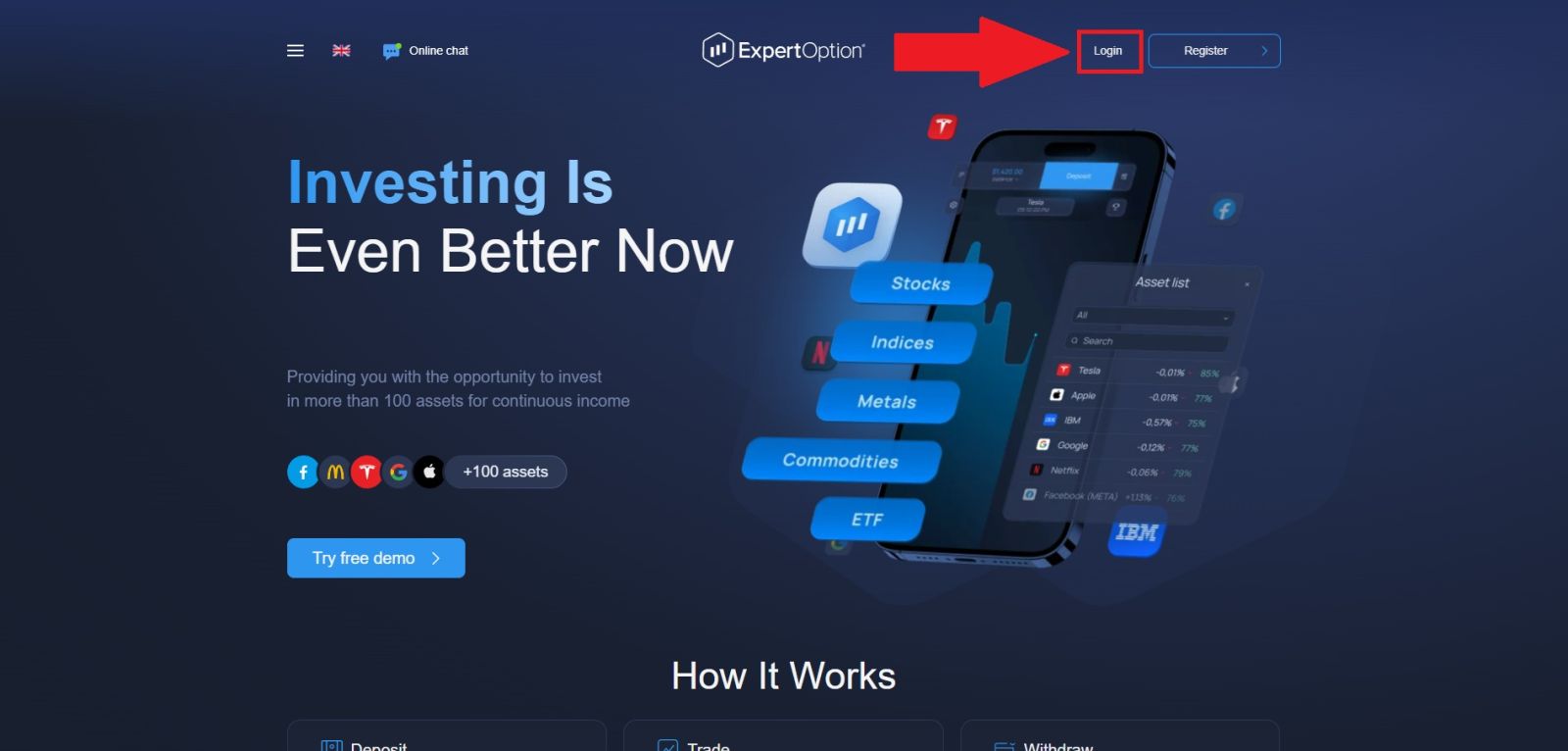
Open your browser and go to the official ExpertOption website. Before entering any personal information, take a moment to verify that the URL is correct and that the connection is secured — look for the padlock symbol in your browser’s address bar. This simple check protects you from phishing sites that mimic the ExpertOption platform.
Click the "Login" button and enter your registered email address and password. If you created your account through a social login, use the corresponding Google, Facebook, or Apple sign-in button. After successful authentication, you will be taken to your main trading dashboard.
Step 2 — Navigate to the Deposit Page
Once inside your dashboard, locate the deposit button. Its position varies slightly depending on your device:
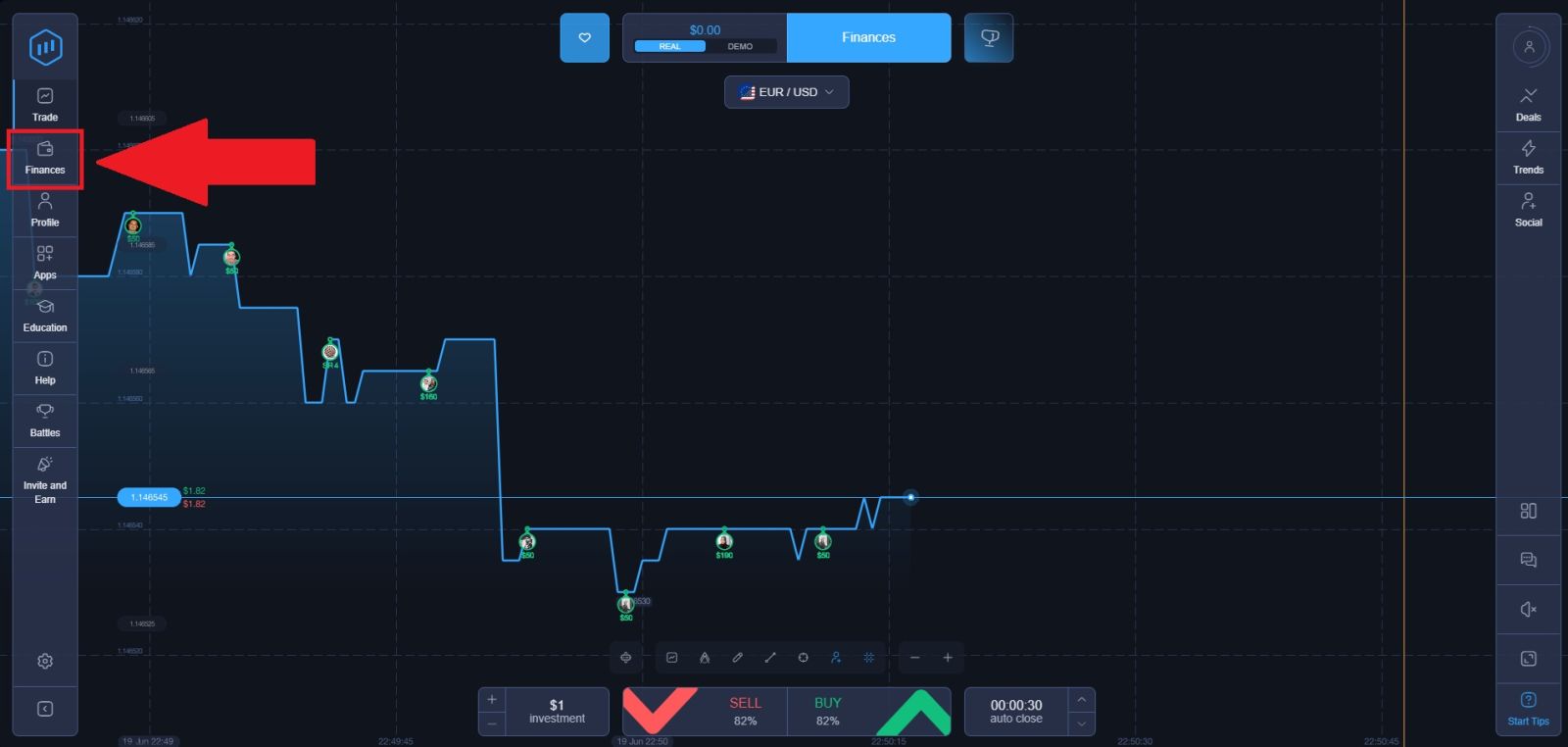
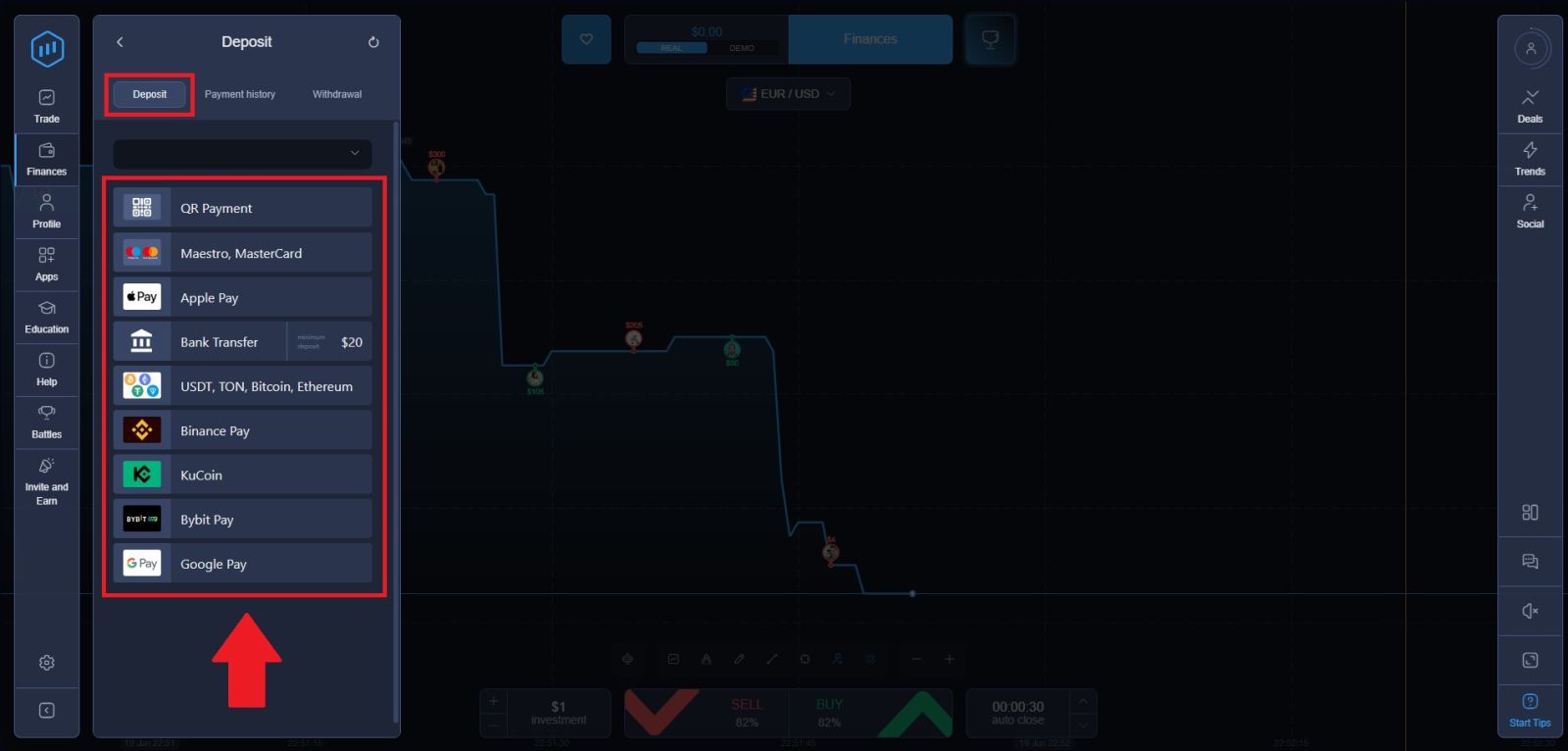
- Desktop browser: A prominently placed green "Finance" button is typically found in the left side of the screen. Then, click on the Deposit section, where all available payment methods for your region are displayed.
Click the deposit method to open the funding page (Here, we’re choosing USDT deposit as an example).
Step 3 — Choose Your Deposit Amount
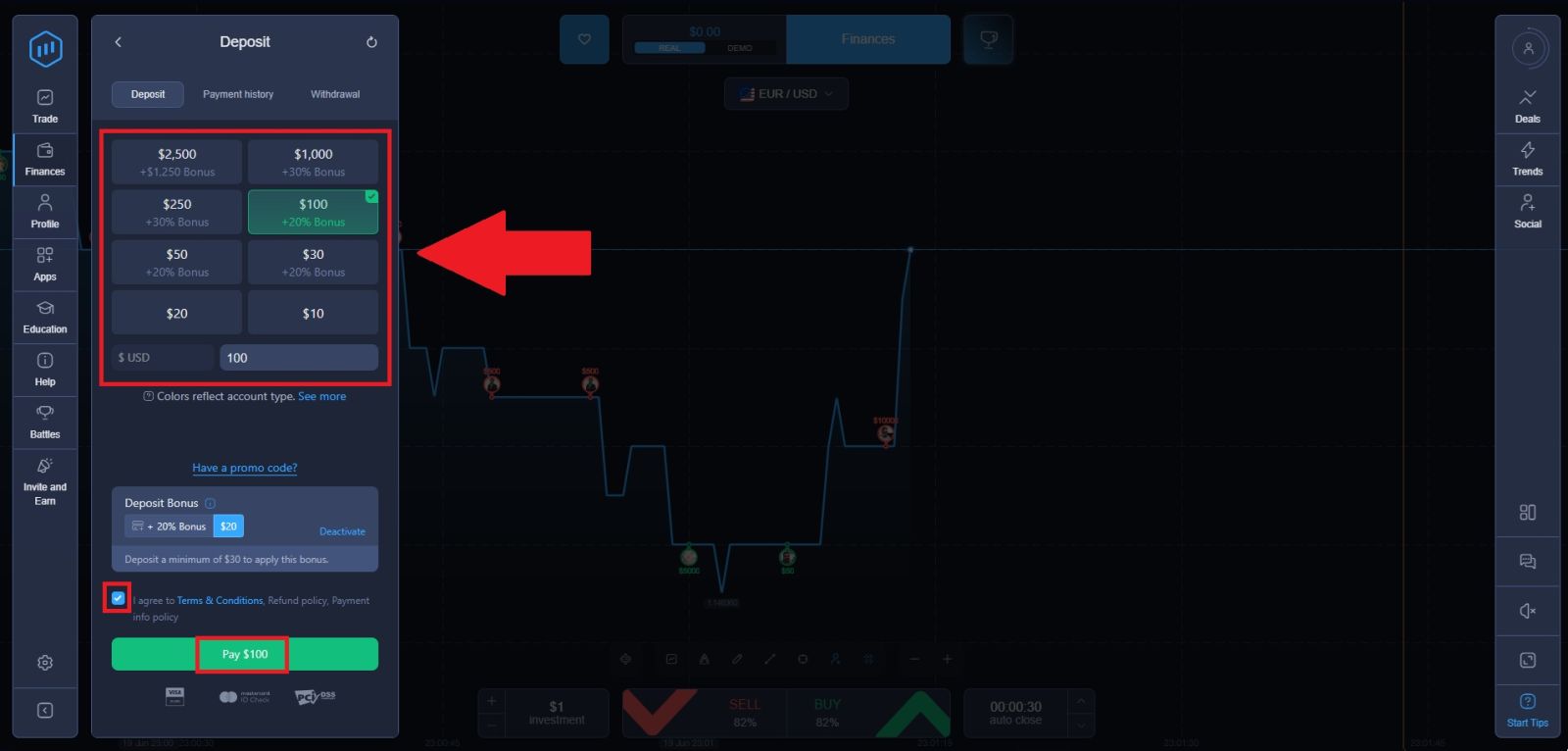
Once you have selected your payment method, you will be taken to the deposit amount screen. This is where you set exactly how much you want to add to your trading account.
Once you are satisfied with your selection, tick the box agreeing to the Terms and Conditions, then click the green "Pay" button to complete your deposit. Your balance will be updated instantly once the payment is confirmed.
Step 4 — Authorize and Complete Your Payment
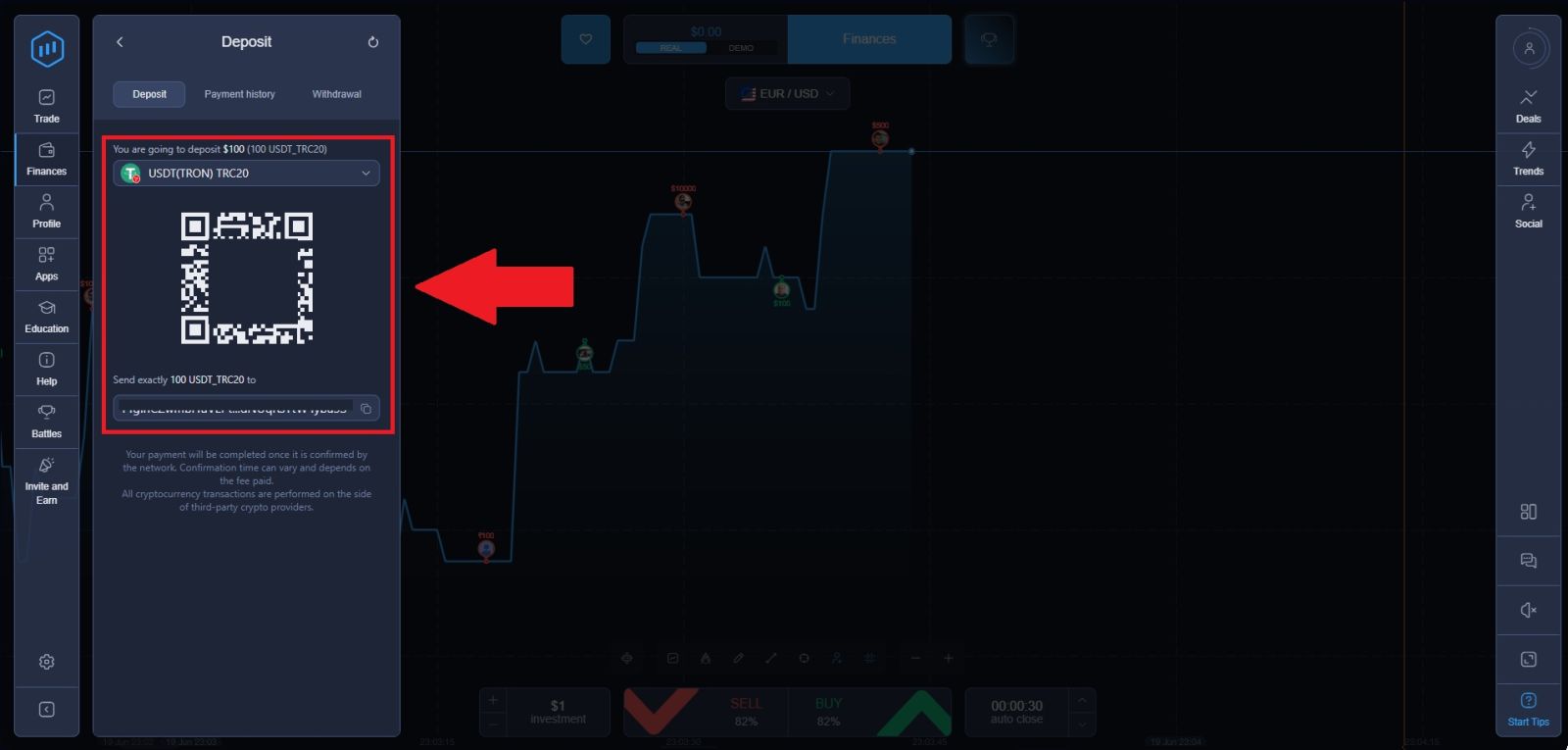
Once your deposit amount is confirmed, you will be redirected to the payment authorization page where you need to finalize the transaction.
On this page, you will find your unique deposit wallet address. To complete the transfer, click the "Copy" icon to copy the wallet address to your clipboard, or use your mobile crypto app to scan the QR code displayed on the screen.
Insider Tips for Depositing on ExpertOption
These are the details most guides leave out — but they matter:
💡 Your demo balance and real balance are completely separate
Depositing funds adds to your real trading account only. Your demo account balance remains unchanged and can always be reset independently.
💡 Verify your identity before you need to withdraw
KYC verification is not required to deposit, but it is required to withdraw. Completing it early — by submitting your ID and proof of address — prevents delays when you are ready to cash out profits.
💡 Crypto deposits work 24/7 with no banking restrictions
Unlike card payments which may occasionally face processing windows or bank-side restrictions, cryptocurrency deposits are available at any hour, on any day, including weekends and public holidays.
💡 Deposit bonuses have conditions attached
While bonus funds increase your available balance, they typically cannot be withdrawn until a specific trading volume threshold is reached. Read the terms before accepting any bonus offer.
💡 Some payment methods have hidden daily or weekly limits
Your bank or card provider may impose limits on international transactions. If a large deposit is declined, try splitting it across multiple smaller transactions or switching payment methods.
💡 Always check for active promotions before depositing
ExpertOption regularly runs limited-time deposit bonus campaigns. Check the promotions section of your account or the platform’s official channels before making a deposit to ensure you do not miss out on extra funds.
What to Do After Your Deposit Is Confirmed
With real funds in your account, here is the smartest sequence of next steps:
1. Complete identity verification if not already done
Submit your government-issued ID and a recent proof of address document. This typically takes 24 to 48 hours and unlocks full withdrawal access.
2. Start with the demo account first
Even with real funds deposited, continue practicing on the demo account until you feel confident in your strategy. There is no rush to switch to live trading immediately.
3. Begin live trading with small positions
When you are ready to trade with real money, start with the minimum trade size. This lets you experience live market conditions without exposing your full balance to risk while you are still learning.
4. Explore all available assets
Browse ExpertOption’s full asset list and identify the markets that align with your knowledge and trading style. Sticking to assets you understand gives you a natural edge.
5. Learn the withdrawal process before you need it
Understanding how to cash out your profits ahead of time means you are never caught off guard when you decide to make your first withdrawal.
👉 Withdraw your profits: ExpertOption Withdrawal Guide
👉 New to trading? How to Place Your First Trade on ExpertOption
Conclusion: Deposit Money into Your ExpertOption Account Easily and Securely
Adding money to your ExpertOption account is a simple and fast process that allows you to start trading without delay. By selecting a supported payment method and following the step-by-step deposit instructions, you can ensure your funds are transferred safely and efficiently.
Checking transaction details carefully and understanding any processing times helps avoid unnecessary issues. With a secure and user-friendly deposit system, ExpertOption makes it easy to fund your account and focus on your trading journey with confidence.